How to Register, Download, & Activate Smaart
1. Register Your License
- If you already have a license management account at my.rationalacoustics.com, click this link to sign in using your account name and password. (If you do not have an account, you will first need to create a new account)
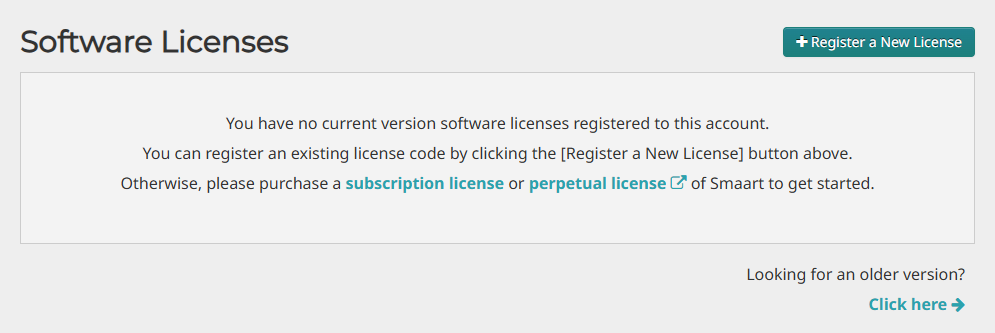
- Click the + Register a New License button at the top of the page. (If you do not see this button, you may first need to click Software Licenses on the left side of the screen)
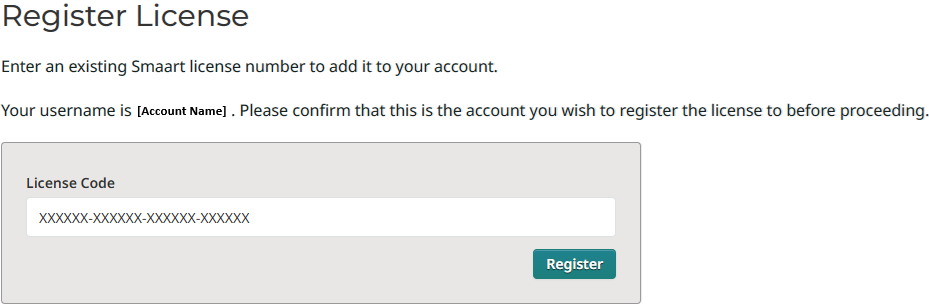
- Enter the Smaart License Code you received via email to complete registration.
2. Download the Software
- Once your license is registered, you should automatically be brought to a page where you can access the software download and activation information. (Otherwise, click on the [Software Licenses] link within your account, and then click on your Smaart license number.)
- Download and run the installer for your operating system (macOS or Windows).
Note: If you have purchased an upgrade license, you do not need to install or uninstall the previous version of Smaart.
3. Activate your Installation
- Run the installed application and follow the in-program instructions to finish the activation process.
- If Smaart detects an internet connection, the Online Activation prompt will appear and you can activate without leaving the program. You will need your Smaart License Code and your my.rationalacoustics.com login information to complete online activation.
- If you need to activate Smaart on a computer that is not connected to the Internet. Please refer to the Smaart Licensing Help Guide for full offline activation instructions (excluding Smaart SPL, which can only be activated online).
- Follow the above steps to install your license on any additional computers, if needed. Perpetual licenses of Smaart Suite and Smaart RT come with two installation seats, but Smaart LE and Smaart SPL only come with one. Your installation count may vary based on your purchase.
Documentation and Support
Please visit our support website for videos and documentation on using Smaart, or for help troubleshooting technical problems. For questions about the user interface, refer to the built-in Help Files within Smaart.
You can also submit a support ticket if you have any problems with the above process.
Was this article helpful?
That’s Great!
Thank you for your feedback
Sorry! We couldn't be helpful
Thank you for your feedback
Feedback sent
We appreciate your effort and will try to fix the article