How to automatically launch Smaart on a schedule (Windows)
Here you will find the steps required to launch Smaart on a schedule on Windows. This process may be helpful for scheduled SPL logging without an operator required. The procedure for doing this on macOS can be found here.
Preparing Smaart
First, if you are planning on using automated launch/close for SPL specifically, you'll need to set up Smaart Suite or Smaart SPL for logging. This can include:
- Configuring your device and input(s),
- Calibrating your input(s),
- Configuring custom metrics and/or alarms,
and finally, - Clicking "Start Logging" and closing the software. If Smaart is closed while logging, it will automatically start a new log upon startup.
- It may also be helpful to check "Do not show me this again" on the automatic Select Config
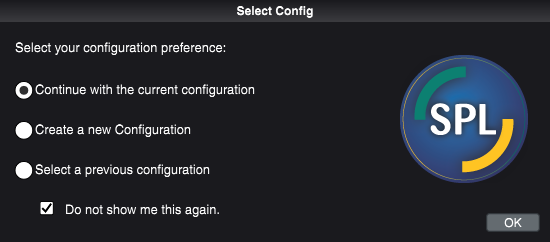
To Open Smaart on a Schedule:
1. Search and run Task Scheduler.
2. Right-click the "Task Scheduler Library" and click "New Folder". Name this folder whatever is most helpful. For this example, we used the name "StartSmaart".
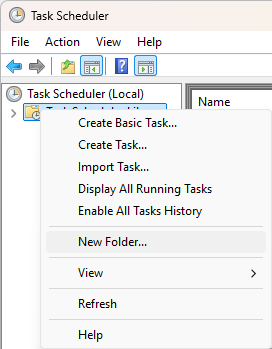
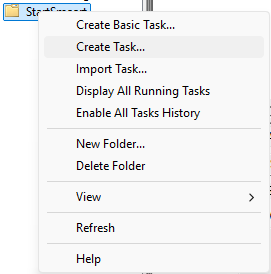
3. Right-click this new folder and select "Create Task". We'll name this task "StartSmaart", as well.
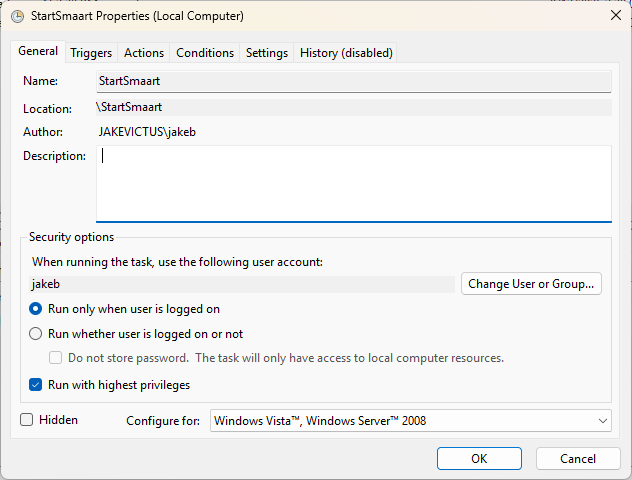
4. In the General Tab: Ensure "Run only when user is logged on" and "Run with highest privileges" are selected. Selecting "Run whether user is logged on or not" will attempt to run Smaart in the background and fail to open the software, which cannot be run in the background.
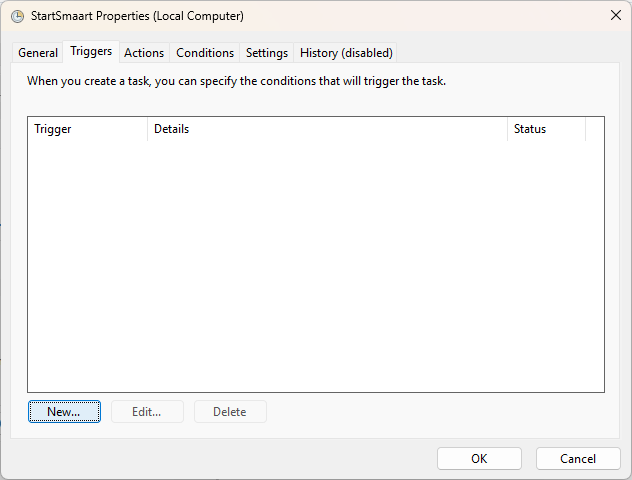
5. In the Triggers Tab: Click "New".
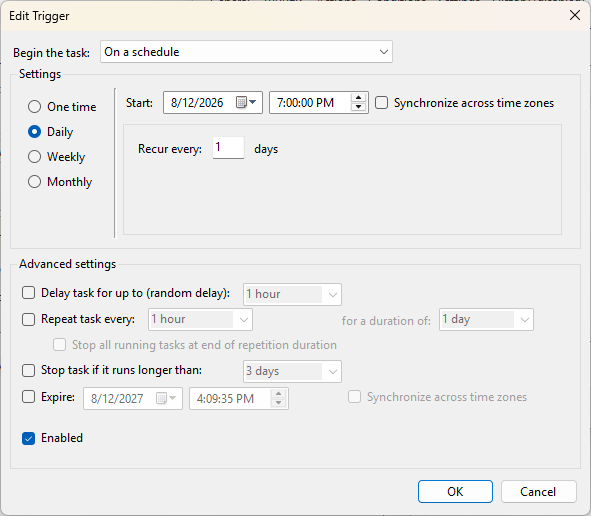
6. Set the time you'd like Smaart to open as well as how often you'd like this to happen. It may be helpful to set this time to a minute or so prior to when you need the log to begin to allow Smaart a small buffer to open. Ensure that "Enabled" is checked, as well.
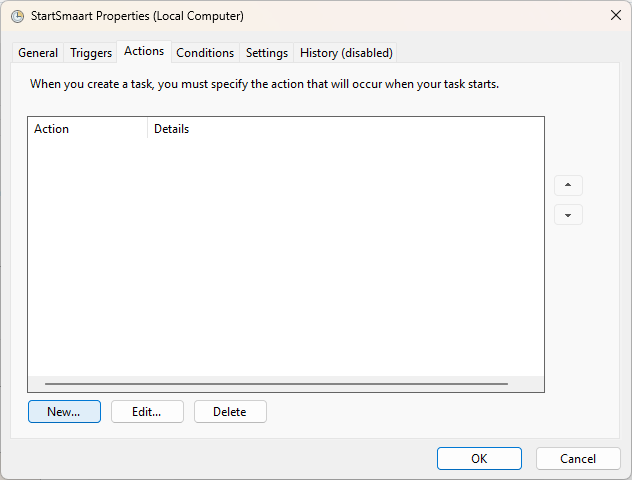
7. In the Actions tab: Click "New".
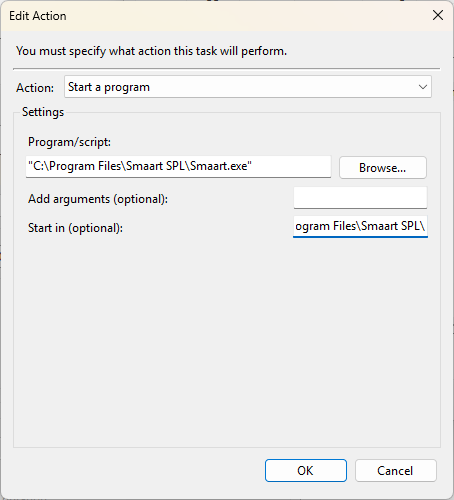
8. The "Start a program" Action should be selected by default. If not, select it from the dropdown. Next, select "Browse" to find the pathway to the Smaart application. Alternatively, you can copy and paste "C:\Program Files\Smaart [SPL or Suite]\Smaart.exe" into the "Program/script" field. Copy and paste this same pathway without quotes ("C:\Program Files\Smaart [SPL or Suite]\" without "Smaart.exe" at the end) into the "Start in" field.
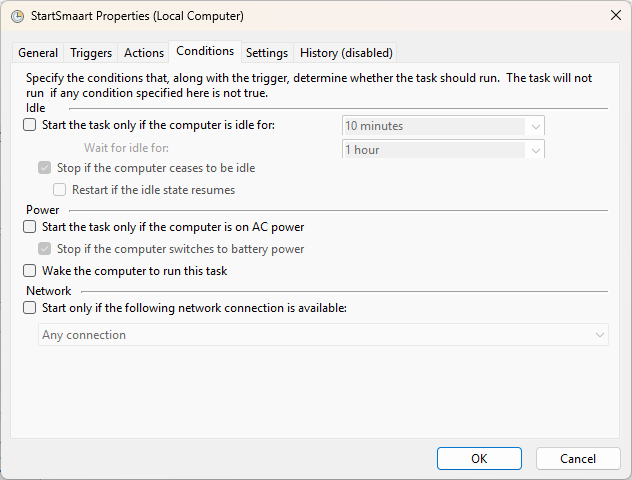
9. In the Conditions tab: ensure that none of these options are checked.
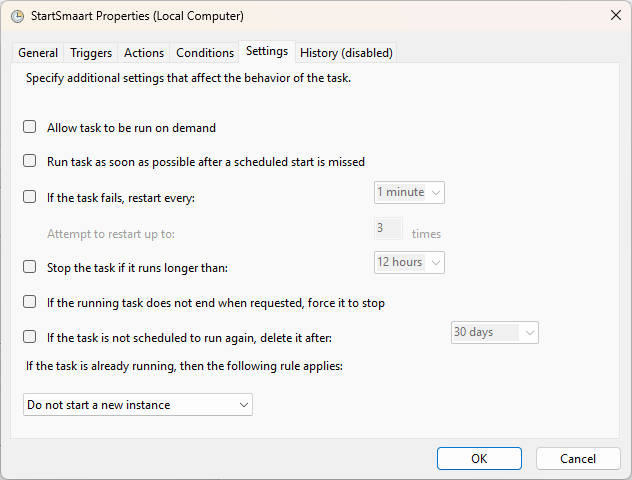
10. In the Settings tab: Some of these options can be helpful, but none are required to run Smaart.
The above steps cover the automated Launching of Smaart Suite/SPL, but a second task is required to close Smaart automatically. This is a necessary step to generate an SPL log, which requires either Smaart to be closed or for the Stop Logging button to be pressed (the latter of which requiring user intervention).
To Close Smaart on a Schedule:
1. In the General Tab: Again right-click the "StartSmaart" folder and select "Create Task". We'll name this new task CloseSmaart. Once again, ensure that "Run with highest privileges" is checked.
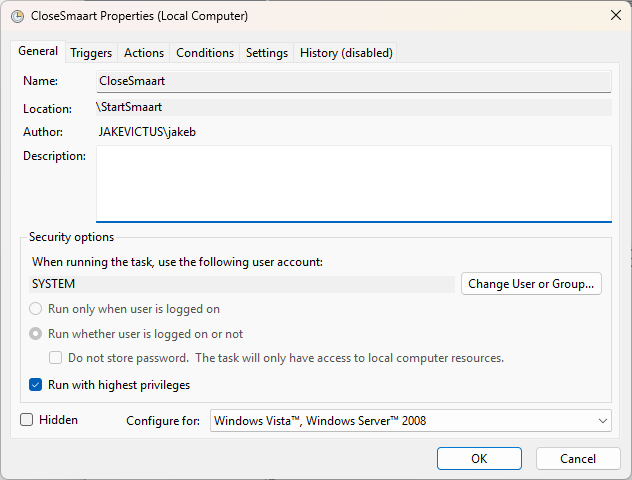
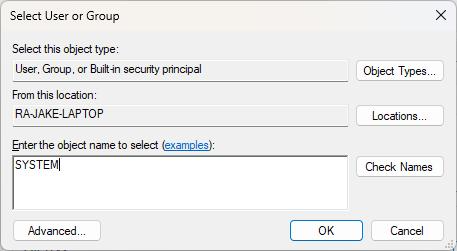
It is recommended to click "Change User or Group..." and enter "SYSTEM" under "Enter the object name to select".
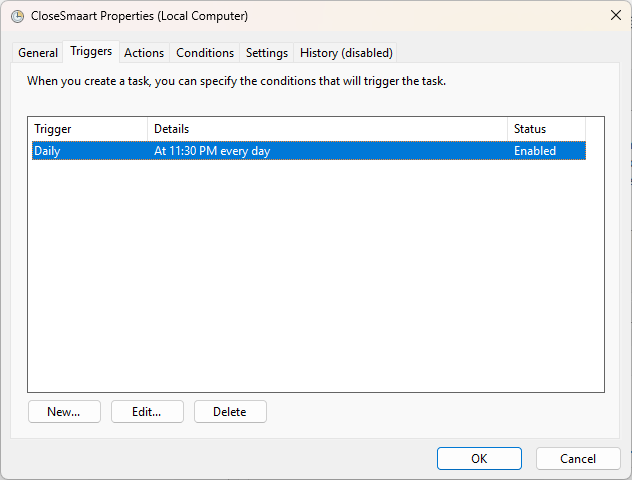
2. In the Triggers Tab: Click "New", again specifying the time at which you'd like Smaart to close and end its log. Again, ensure "Enabled" is checked.
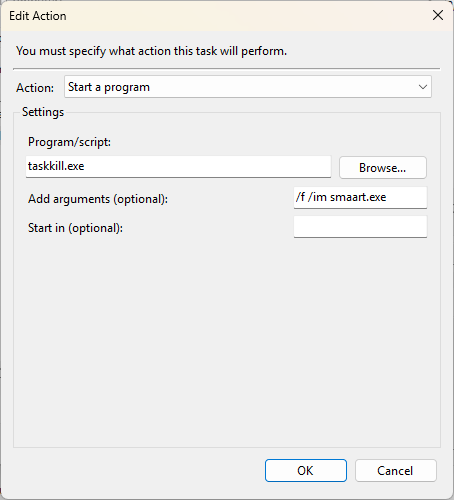
3. In the Actions tab: Click "New". The program/script should be "taskkill.exe" (without quotes). Additionally, enter "/f /im smaart.exe" (also without quotes) under "Add arguments".
4. In the Conditions tab: Again, ensure that none of these options are checked.
5. In the Settings tab: Some of these options can be helpful, but none are required to close Smaart.
Smaart is now set to open and close automatically on a schedule!
Was this article helpful?
That’s Great!
Thank you for your feedback
Sorry! We couldn't be helpful
Thank you for your feedback
Feedback sent
We appreciate your effort and will try to fix the article