Export Project as Powersoft XML
Users of Powersoft DSP, rejoice! Starting with Data Modeler v1.1, you can export DSP settings to an .xml file, which can be imported directly into ArmoníaPlus.
Note: At the time of writing, this feature is confirmed to work with ArmoníaPlus v2.7.
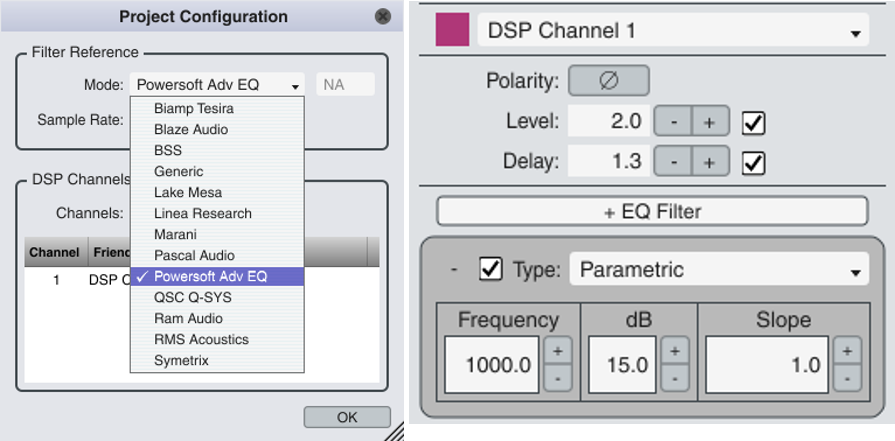
1. Ensure your Data Modeler project is set to model “Powersoft Adv EQ”.
2. Set your DSP Channel(s) as desired.
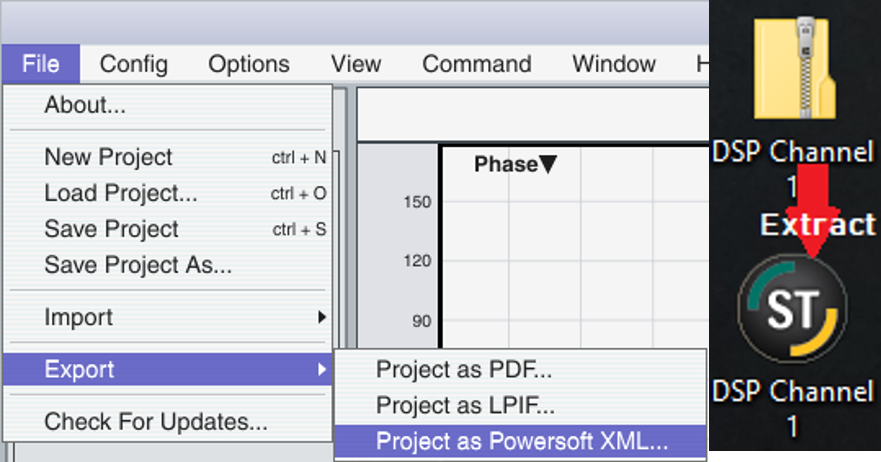
3. Navigate to File > Export > Project as Powersoft XML and you will be able to choose where to save the file. By default, this is set to Windows’ main Documents folder.
4. Data Modeler saves your DSP settings in a .zip file, so you’ll need to extract the .xml file within before it’s ready to import.
5. Open ArmoníaPlus to your desired project (or create a new one).

6. Click the “Tune” option in the bottom-right, then the “EQ” option and double-click the Group you’d like to apply the DSP settings to.

7. Click “Import” at the top-right corner of the screen and you’ll be able to find and select your exported .xml file in your file browser. Note: ArmoníaPlus will default to the .iqp filetype. You will need to use the drop-down to change the expected type to .xml or your DSP file won’t be shown for import.
Was this article helpful?
That’s Great!
Thank you for your feedback
Sorry! We couldn't be helpful
Thank you for your feedback
Feedback sent
We appreciate your effort and will try to fix the article