Re-Installing Rosetta After Updating to macOS 27 (Golden Gate)
Updating to macOS 27 (Golden Gate) will automatically uninstall Rosetta. This behavior is likely in anticipation of macOS 28's full discontinuation of Rosetta support, and will similarly impact any computers running Smaart v8, Smaart Di v2, and Smaart SPL v1.
Golden Gate (mac OS 27), however, will continue to run Intel-based applications such as those on the Smaart v8 platform, but only once Rosetta is reinstalled.
As such, below are Apple's steps to re-install Rosetta when this happens.
Method 1: Prompt
The first method is simple. When first opening any versions of Smaart mentioned above (or any other Intel-based application), you will receive an automated prompt:
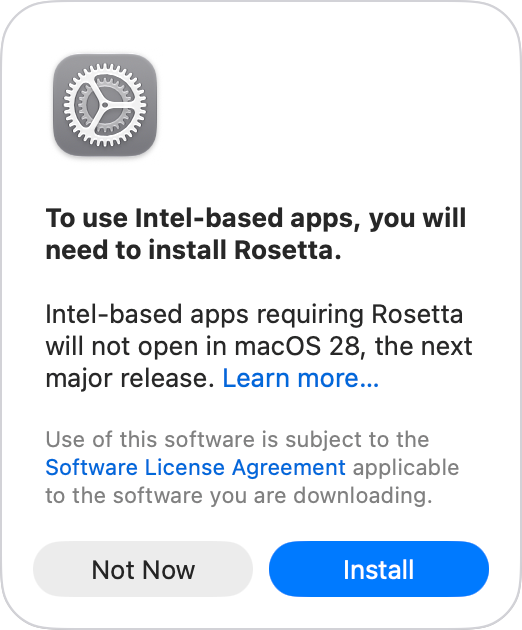 Simply click "Install" in this window and macOS will re-download Rosetta.
Method 2: Terminal
If you are unable to trigger the prompt above, you can also re-install Rosetta via Terminal following these steps:
1. Make sure that your Mac is connected to the internet.
2. Open Terminal, which is in the Utilities folder of your Applications folder.
3. Type or paste this command in the Terminal window:
softwareupdate --install-rosetta
4. Press Return and follow the onscreen instructions.
Was this article helpful?
That’s Great!
Thank you for your feedback
Sorry! We couldn't be helpful
Thank you for your feedback
Feedback sent
We appreciate your effort and will try to fix the article