Strange Input Behavior/No Signal -
How to Disable Audio Enhancements
Windows
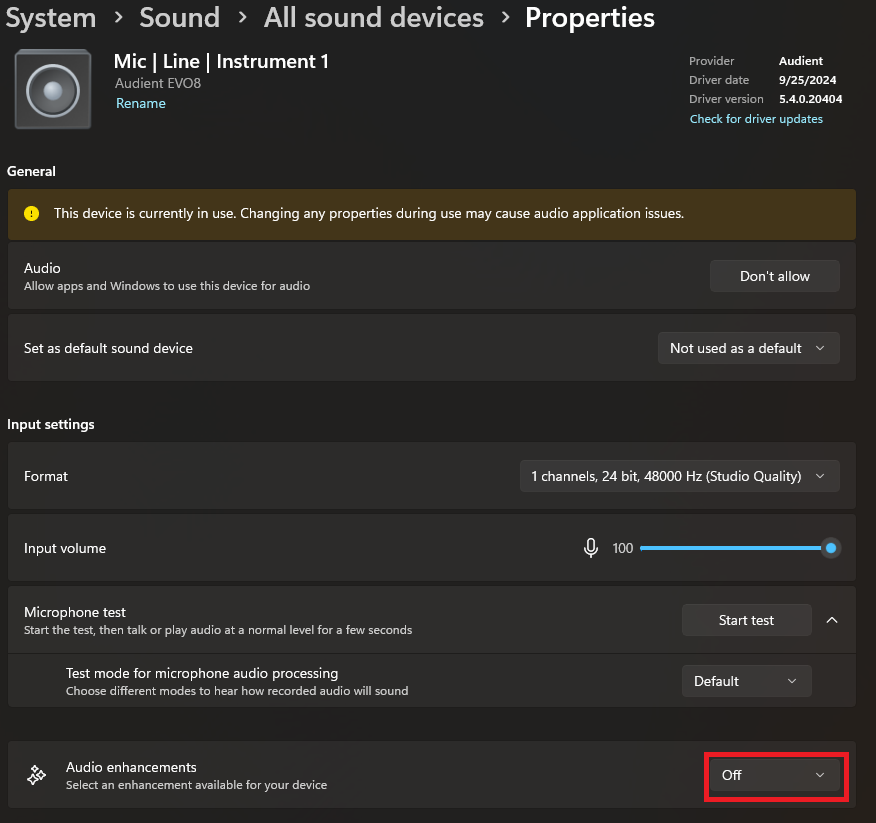
Disable Audio Enhancements (First Location)
Windows 11 has noise suppression on by default, which can cause issues. There are two ways to check whether this is active (and to disable it).
To do so, navigate to System > Sound > All sound devices > [Your I/O Device] > Properties
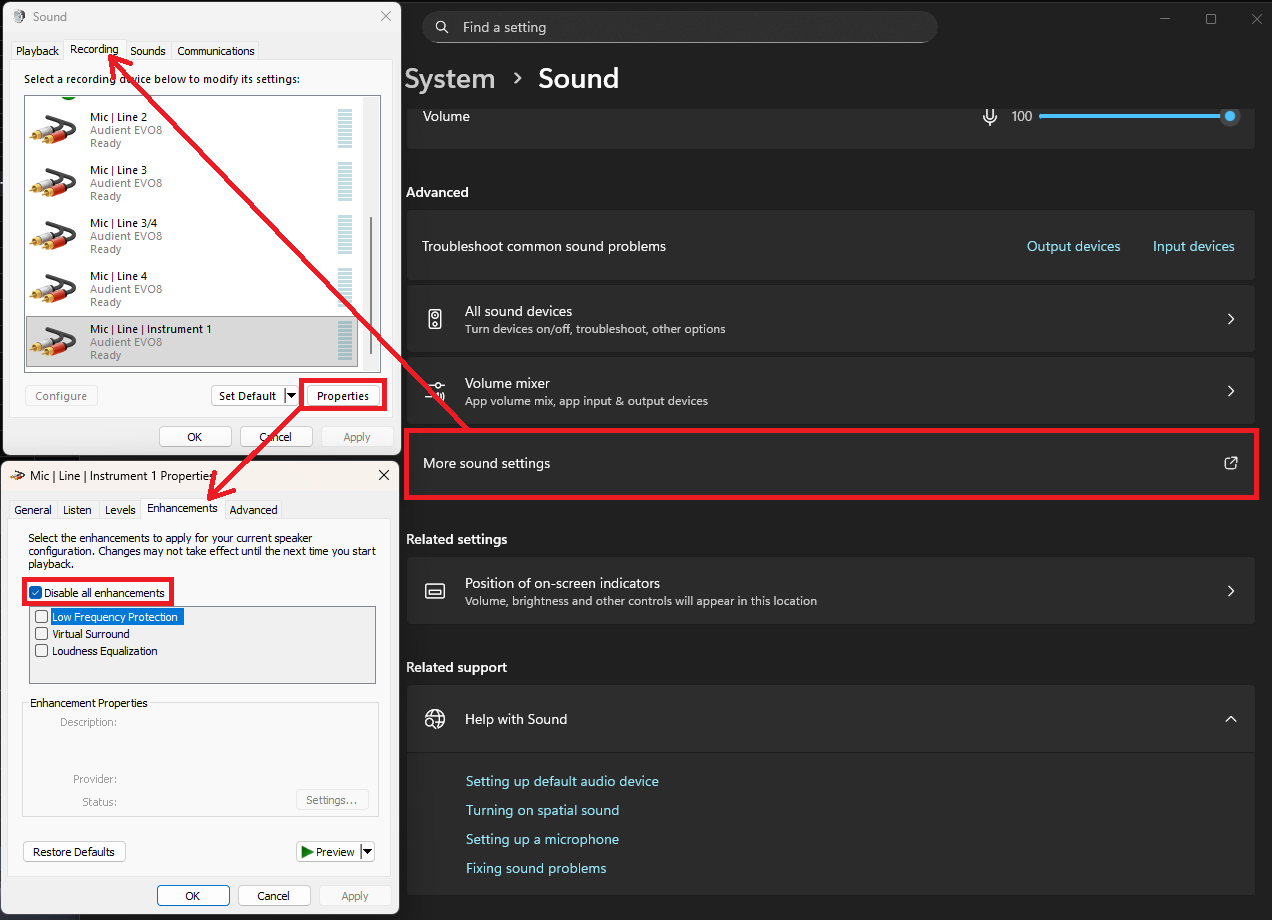
Disable Audio Enhancements (Second Location)
- Navigate to System > Sound > More Sound Settings
- Click the Recording tab
- Select your I/O device
- Click Properties
- Click the Enhancements tab
- Check "Disable all Enhancements"
- Click "Apply"
MacOS
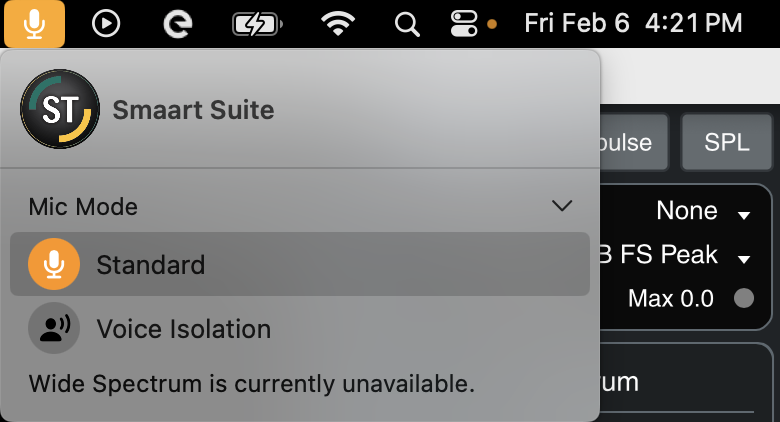
MacOS has a similar microphone setting called "Voice Isolation" mode.
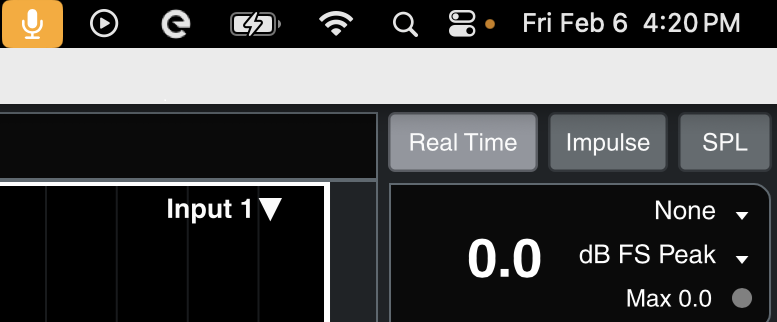
To ensure this is disabled, click the microphone icon that appears when Smaart (or any other app) is accessing your system's mic.
From here, ensure that the microphone is set to "Standard" mode, not "Voice Isolation".
Was this article helpful?
That’s Great!
Thank you for your feedback
Sorry! We couldn't be helpful
Thank you for your feedback
Feedback sent
We appreciate your effort and will try to fix the article